Light Studio
Create, compose and control professional lighting rigs quickly.
(01) Overview
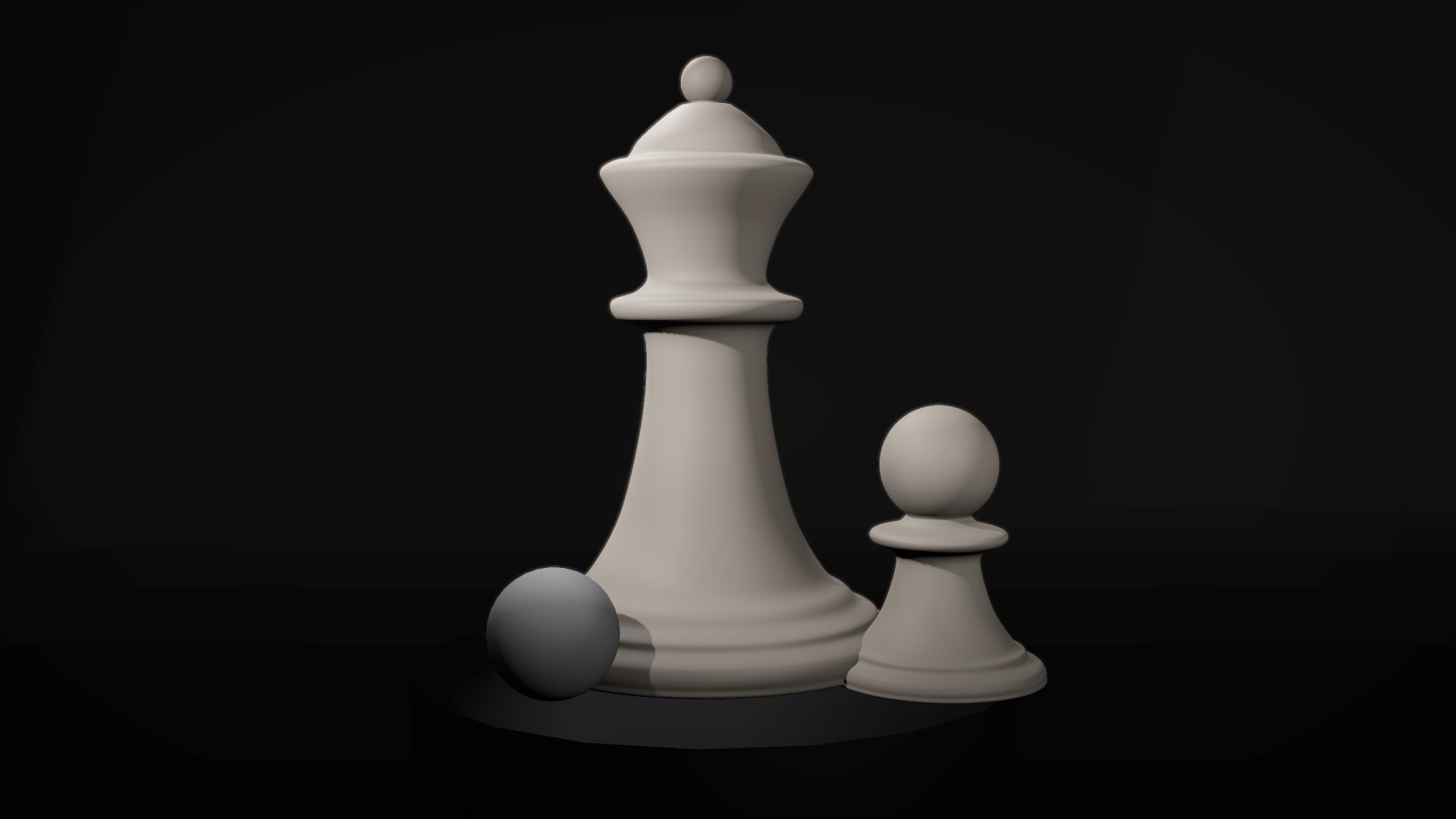
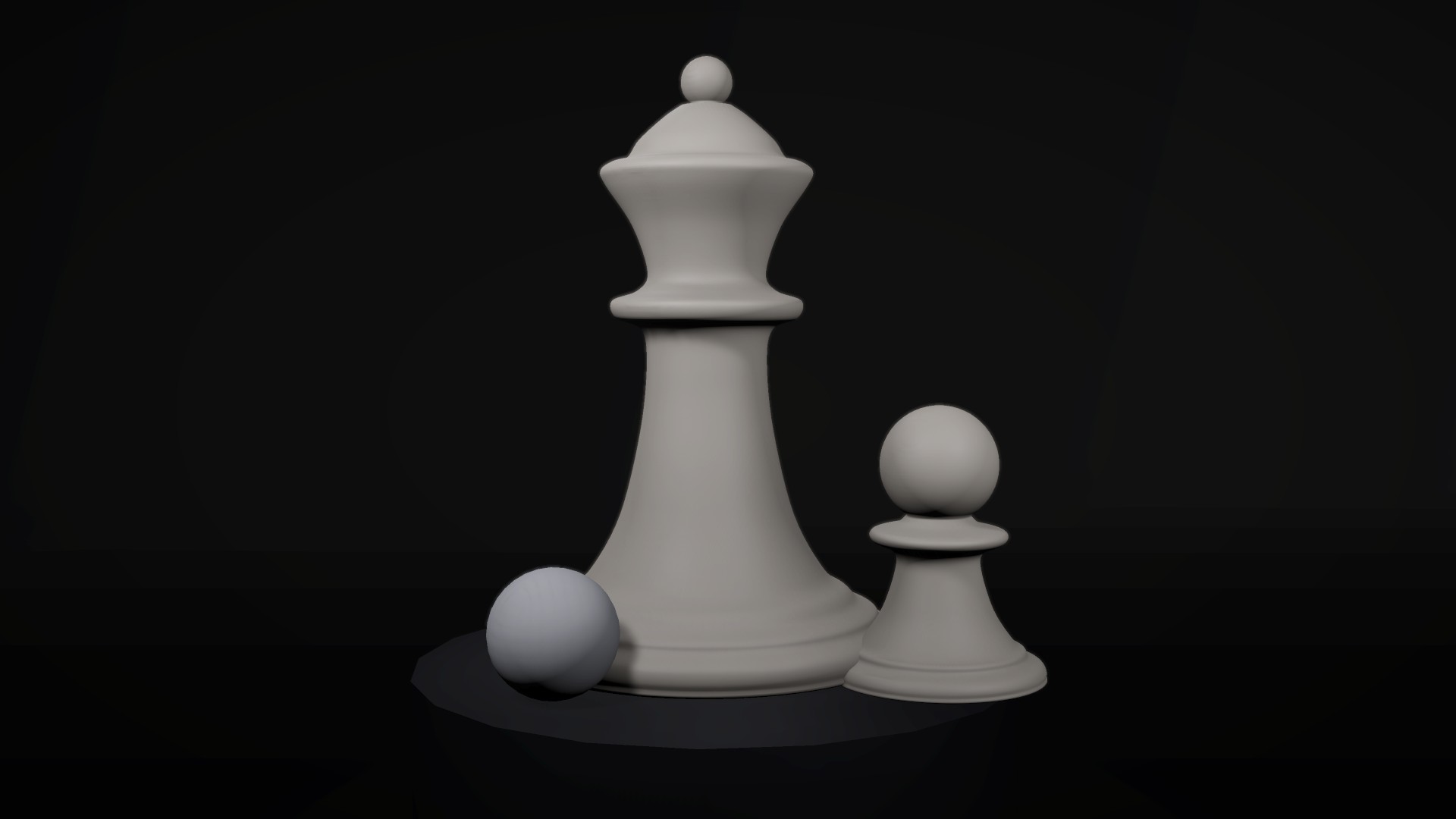
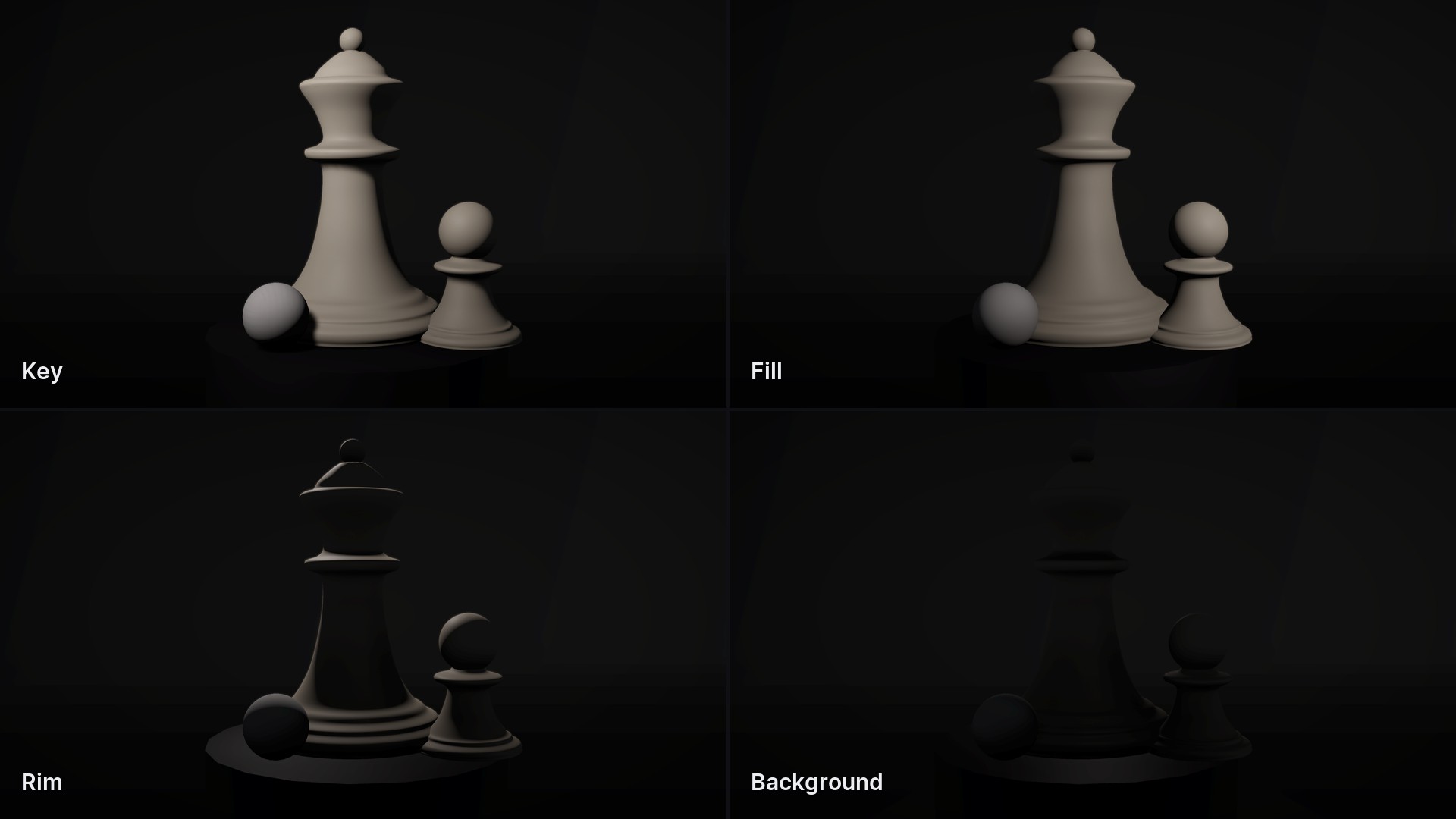
Light Studio is a professional layer of control over Unity's own lighting system. Point it at a subject and a camera and it builds a three-point rig — Key, Fill, Rim, Background — positioned from the subject's actual bounds rather than a fixed offset. It never replaces standard Unity Lights, Volumes or Reflection Probes; it creates and manages them, and hands them back cleanly whenever you want to take over.
- Version
- 1.0.0
- Unity
- Unity 6.3 (6000.3) or newer
- Render pipeline
- Any render pipeline — Built-in and URP adapters included
- Scope
- Runtime + Editor
- Open from
- Tools ▸ Polynest ▸ Light Studio
Three-point rig
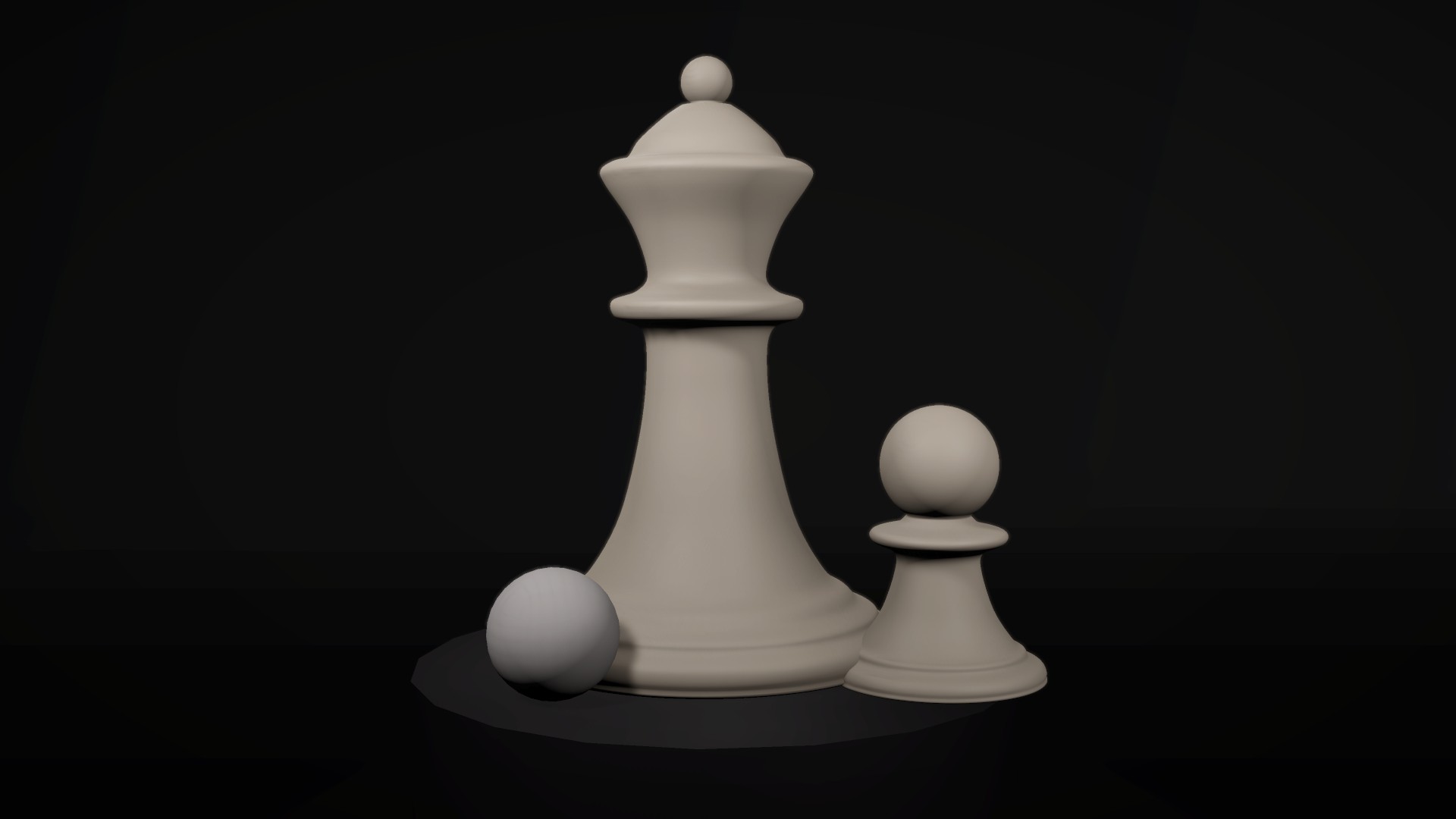
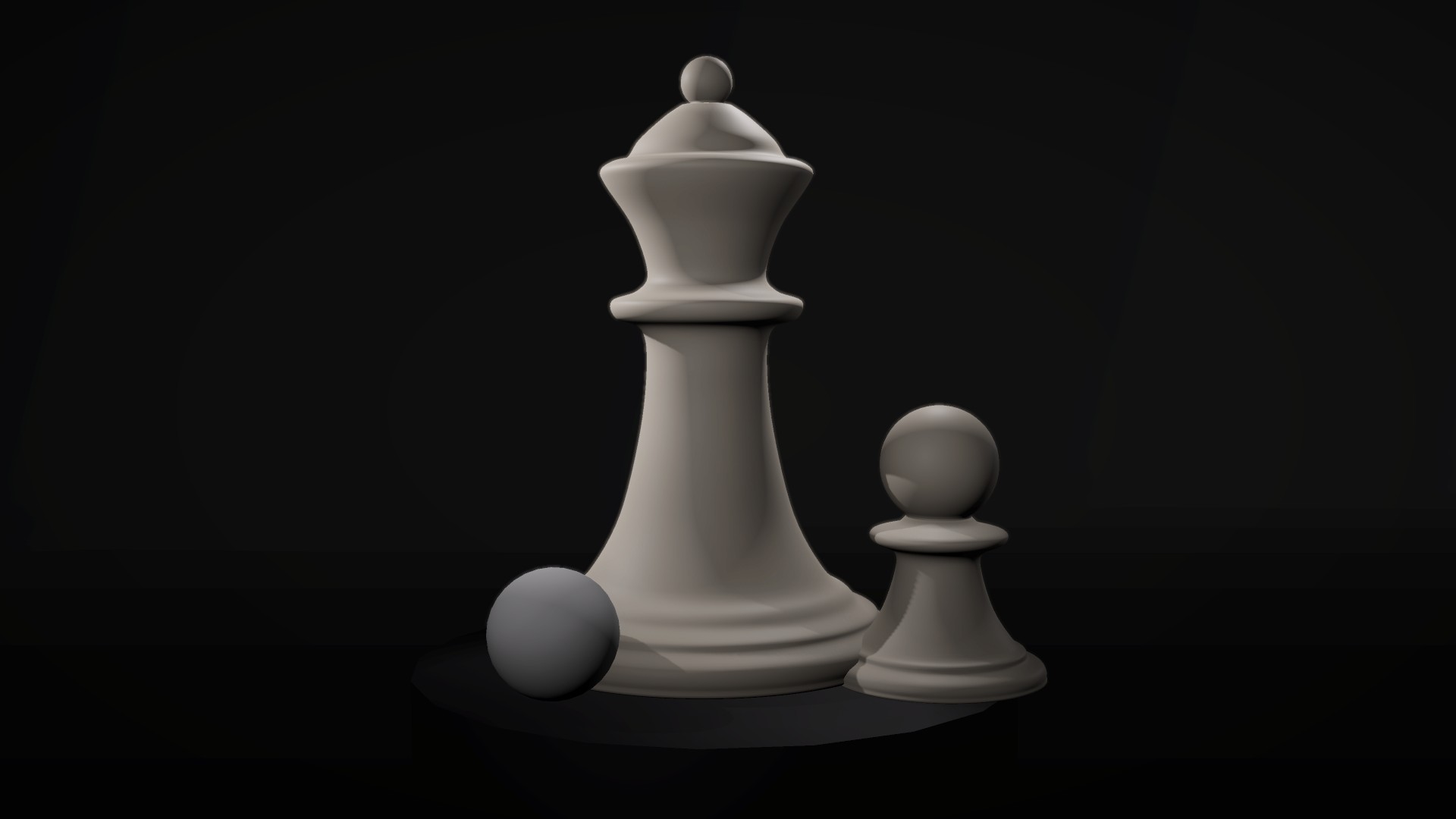
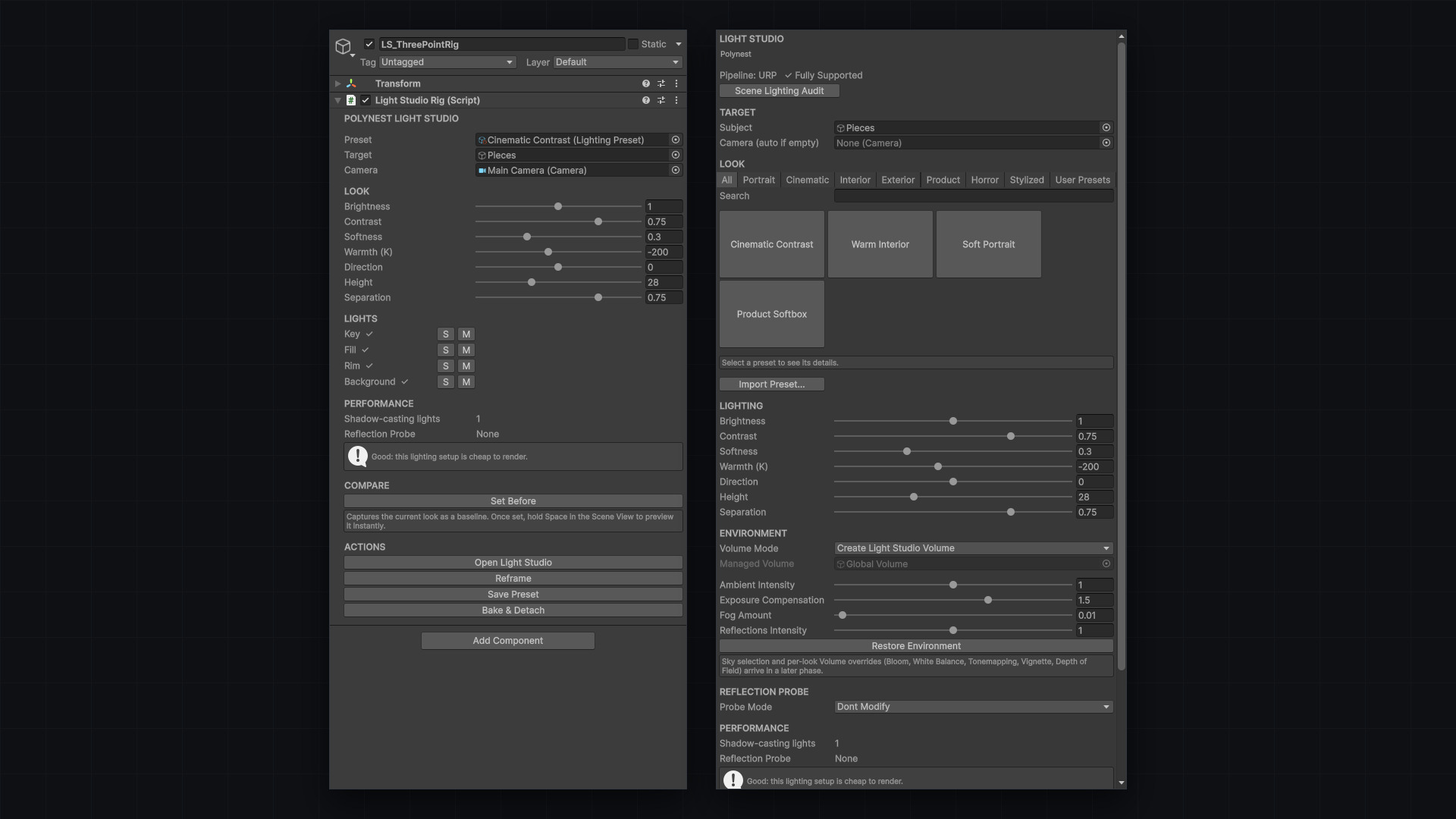
Key, Fill, Rim and Background lights built and re-derived from the subject's bounds and the camera's view.
Artistic controls
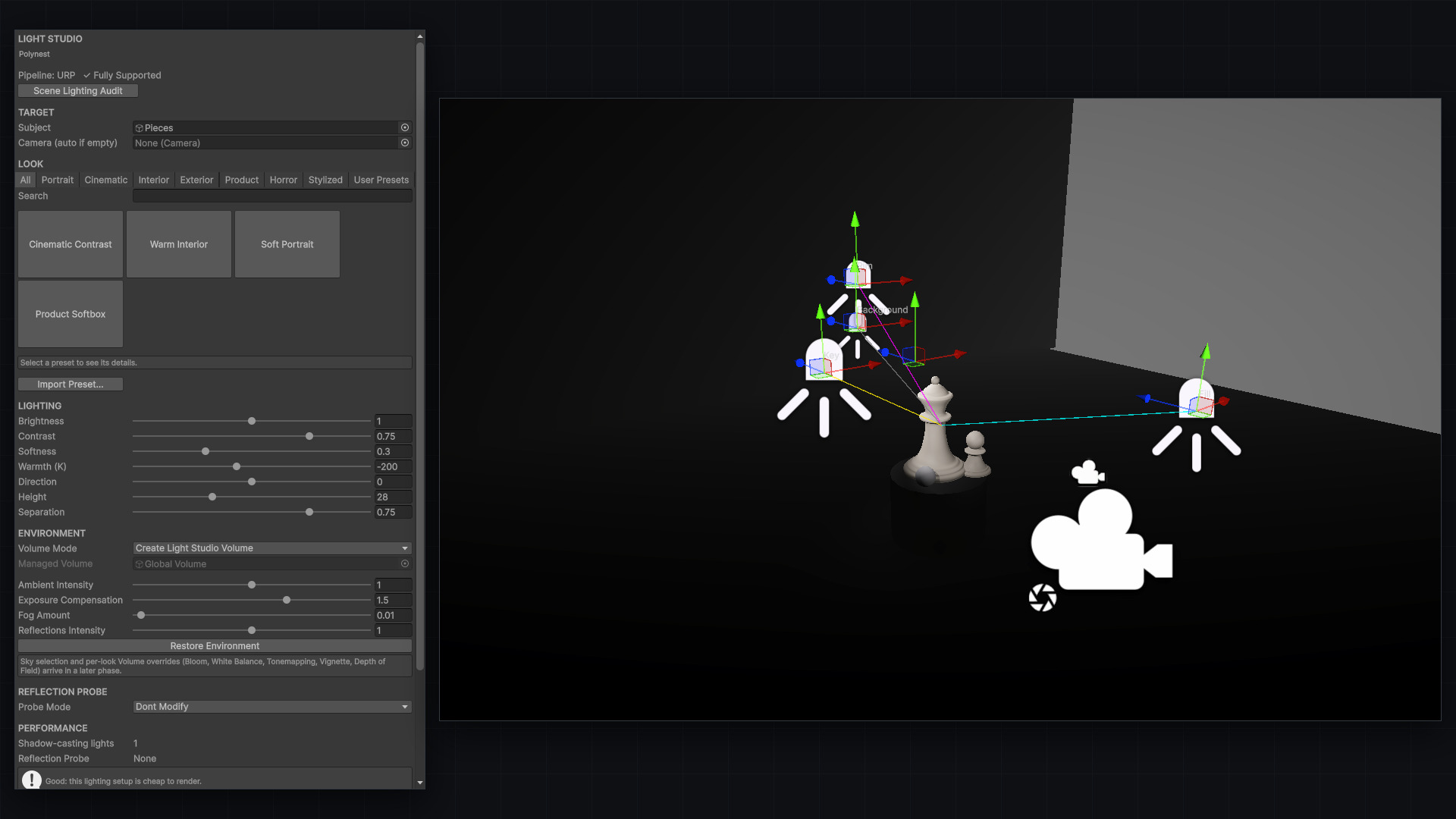
Brightness, Contrast, Softness, Warmth, Direction, Height, Separation — one set that drives every light at once.
Lighting presets
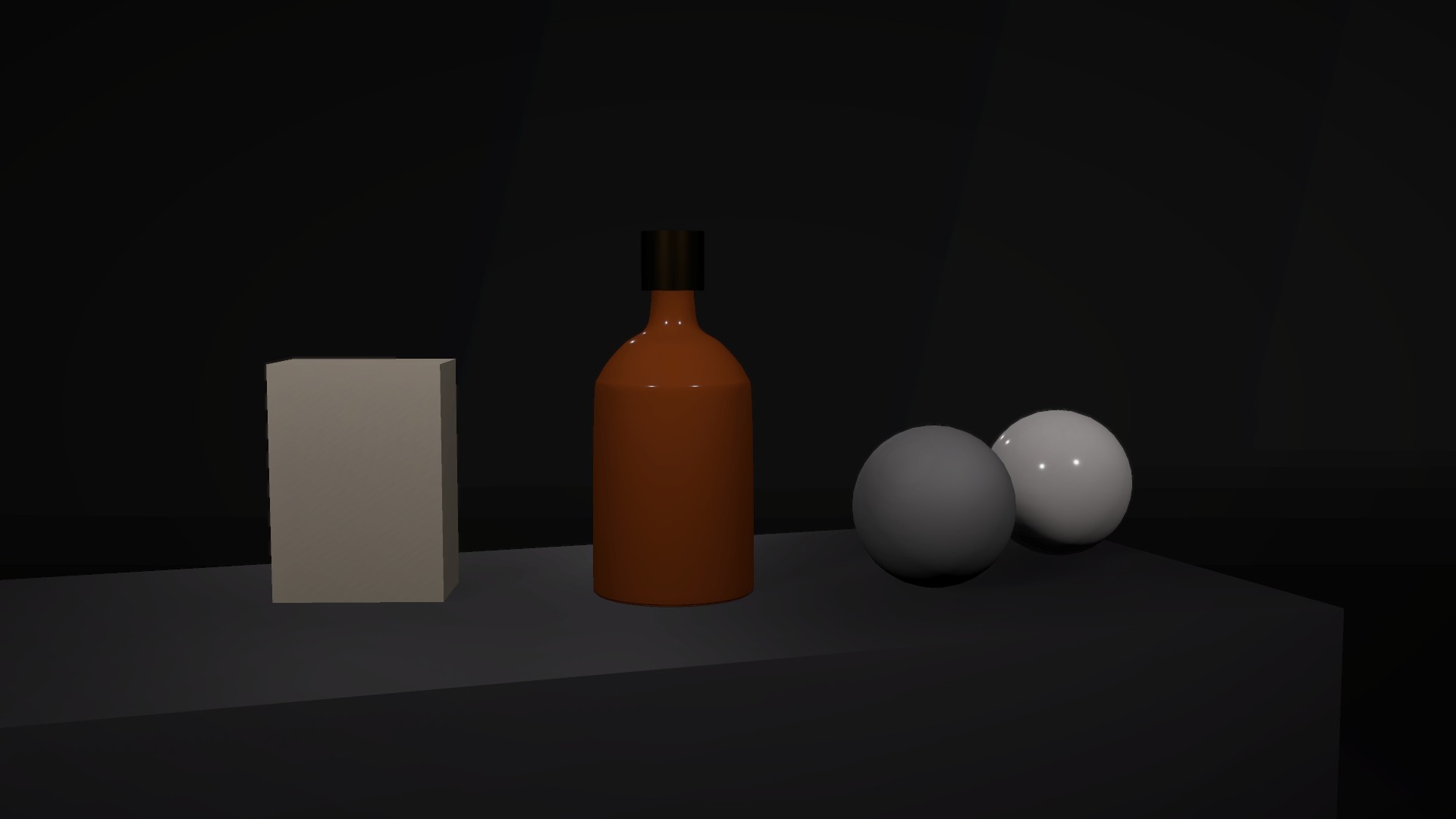
Portrait, Cinematic, Product, Interior, searchable by category and tag. Save As Preset captures a live rig's exact look.
Scene View handles
Drag a light directly in the Scene View; the rig re-derives a correct, subject-aimed placement.
Volume and environment
Create-and-own, use an existing Volume, or don't touch Volumes at all — with snapshot-and-restore for ambient, exposure and fog.
Reflection Probe Assistant
An opt-in, rig-owned, correctly-sized Reflection Probe with Low, Medium and High quality tiers.
Before / After
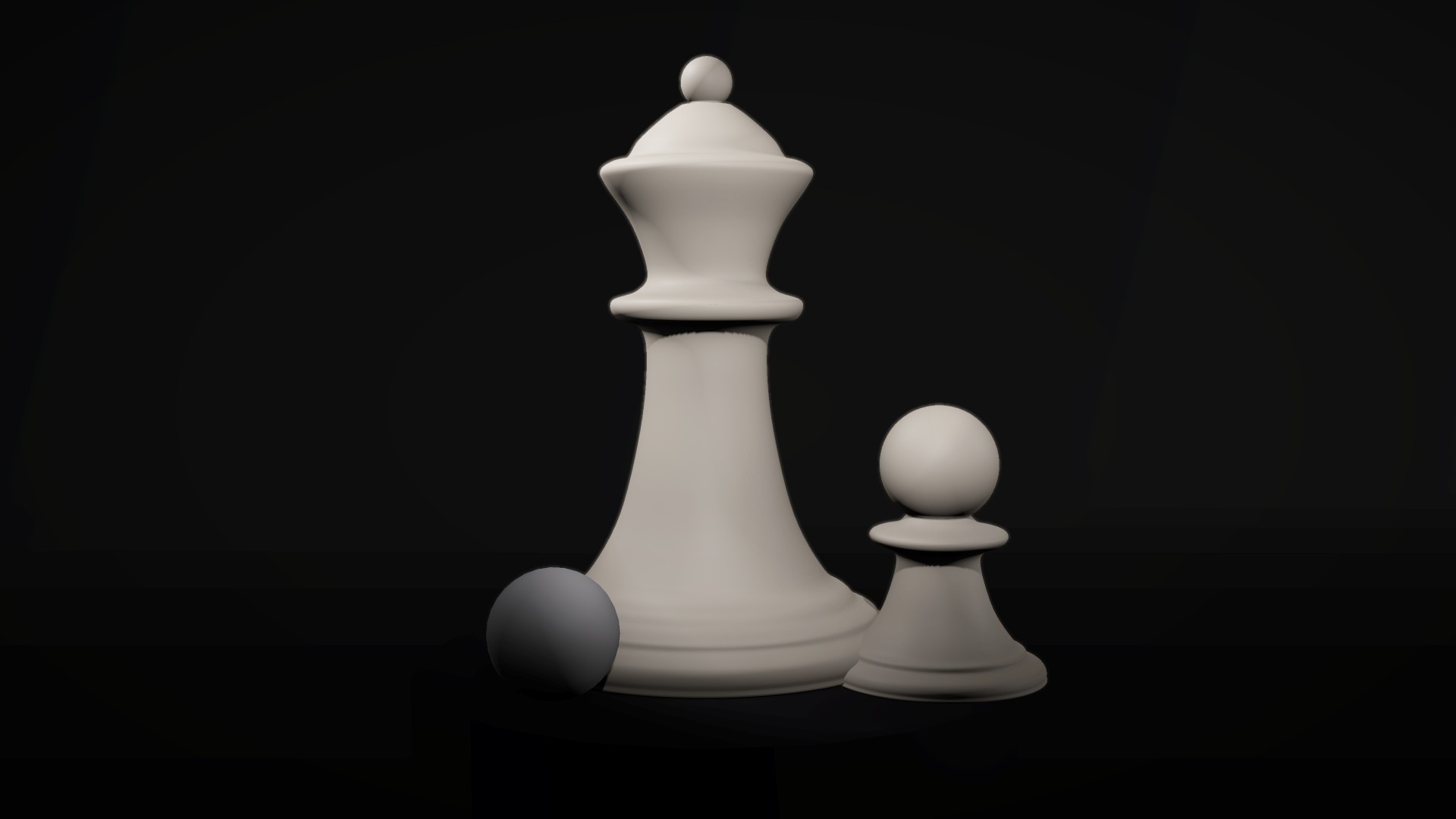
Set Before, hold Space in the Scene View to preview it, then Apply or Cancel.
Bake & Detach
Finalizes the current look, then hands back plain Unity Lights with no further management.
Scene Lighting Audit
Every rig in the open scenes, what's wrong with it, and a one-click way to select it.
(02) Start here
- 1
Open Tools ▸ Polynest ▸ Light Studio.
- 2
Assign a Subject (any GameObject with a Renderer) and, optionally, a Camera.
- 3
Press Create Rig. A three-point rig appears, already lit and aimed at the subject.
(03) Good to know
- Never modifies a Volume it didn't create.
- A project without a dedicated pipeline adapter still gets a fully working rig, minus pipeline-specific extras like Volume support.
- Presets travel between projects as a portable JSON file, thumbnail included.
Next plugin
Prefab Variant Generator